Physical Address
304 North Cardinal St.
Dorchester Center, MA 02124
Physical Address
304 North Cardinal St.
Dorchester Center, MA 02124

Navigating Salesforce Excellence
Navigating Salesforce Excellence
What are we looking to achieve?

- Signatures will be populated dynamically along with the logo while sending emails from Salesforce.

Want to watch a step-by-step video instead? - YouTube Tutorial
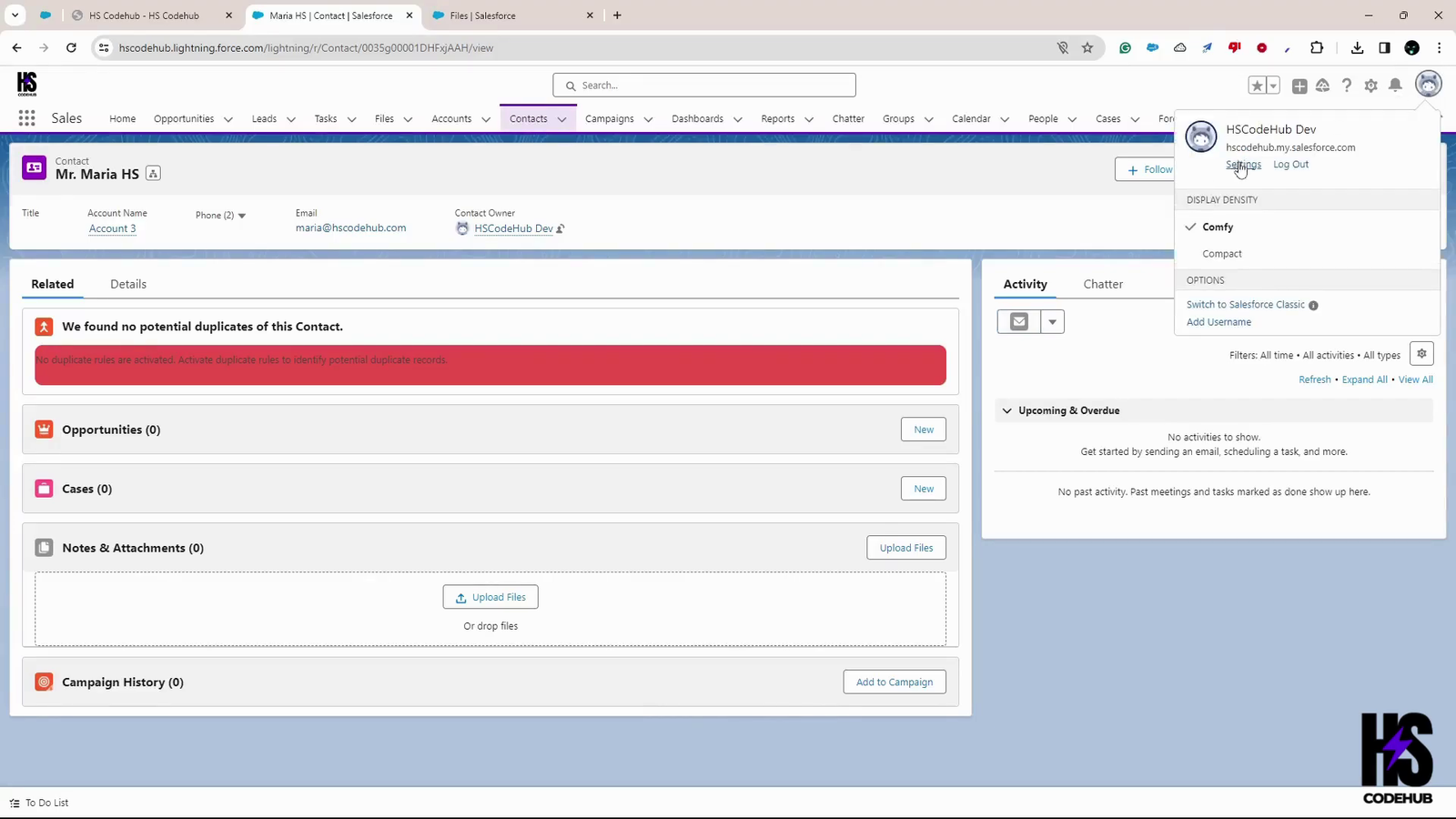
Click on your profile avatar(top right corner) > Settings
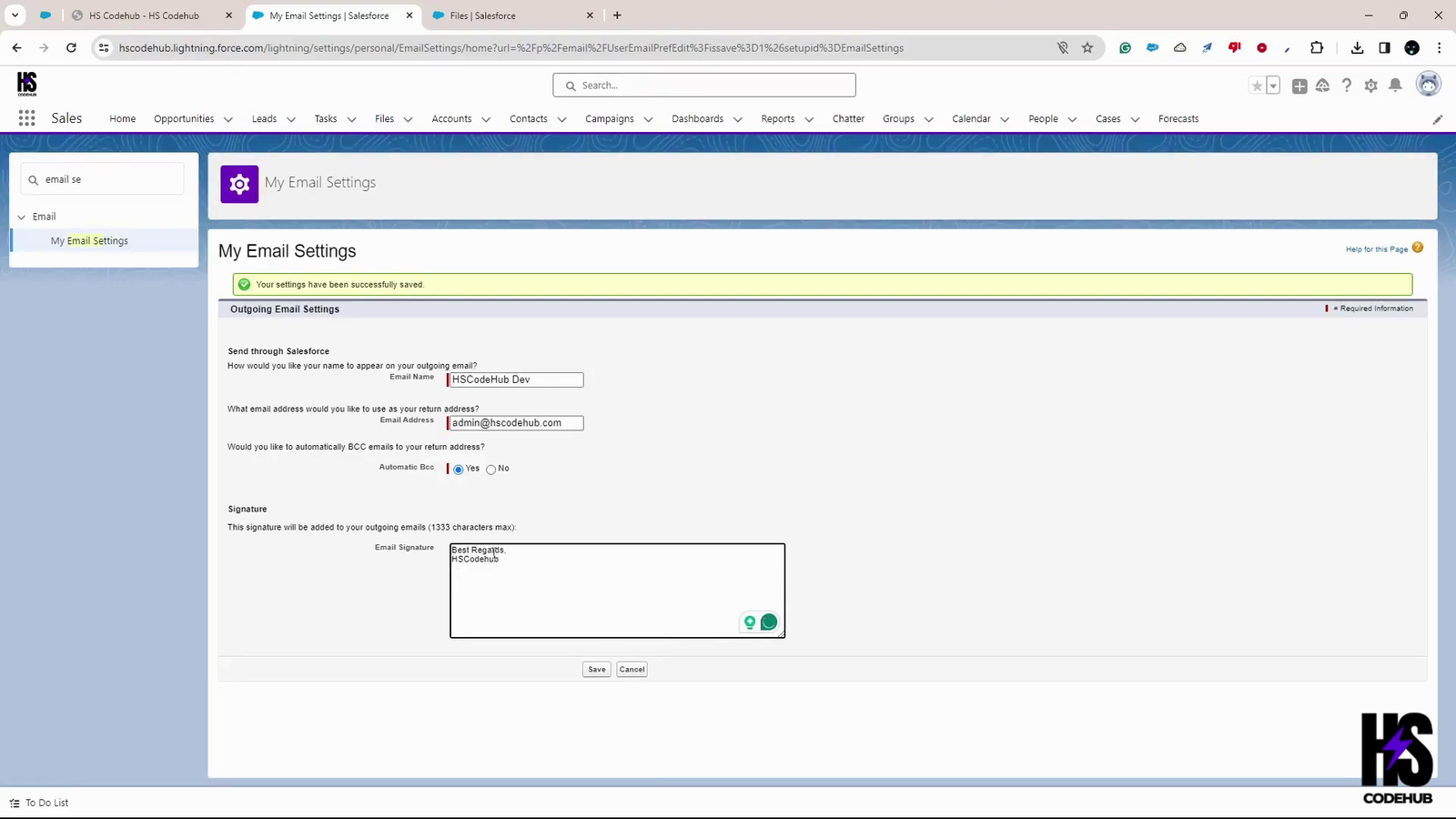
Search for ‘My Email Settings’. You can write your text signature in the ‘Email Signature’ section. Let’s see how we can add a logo to it.
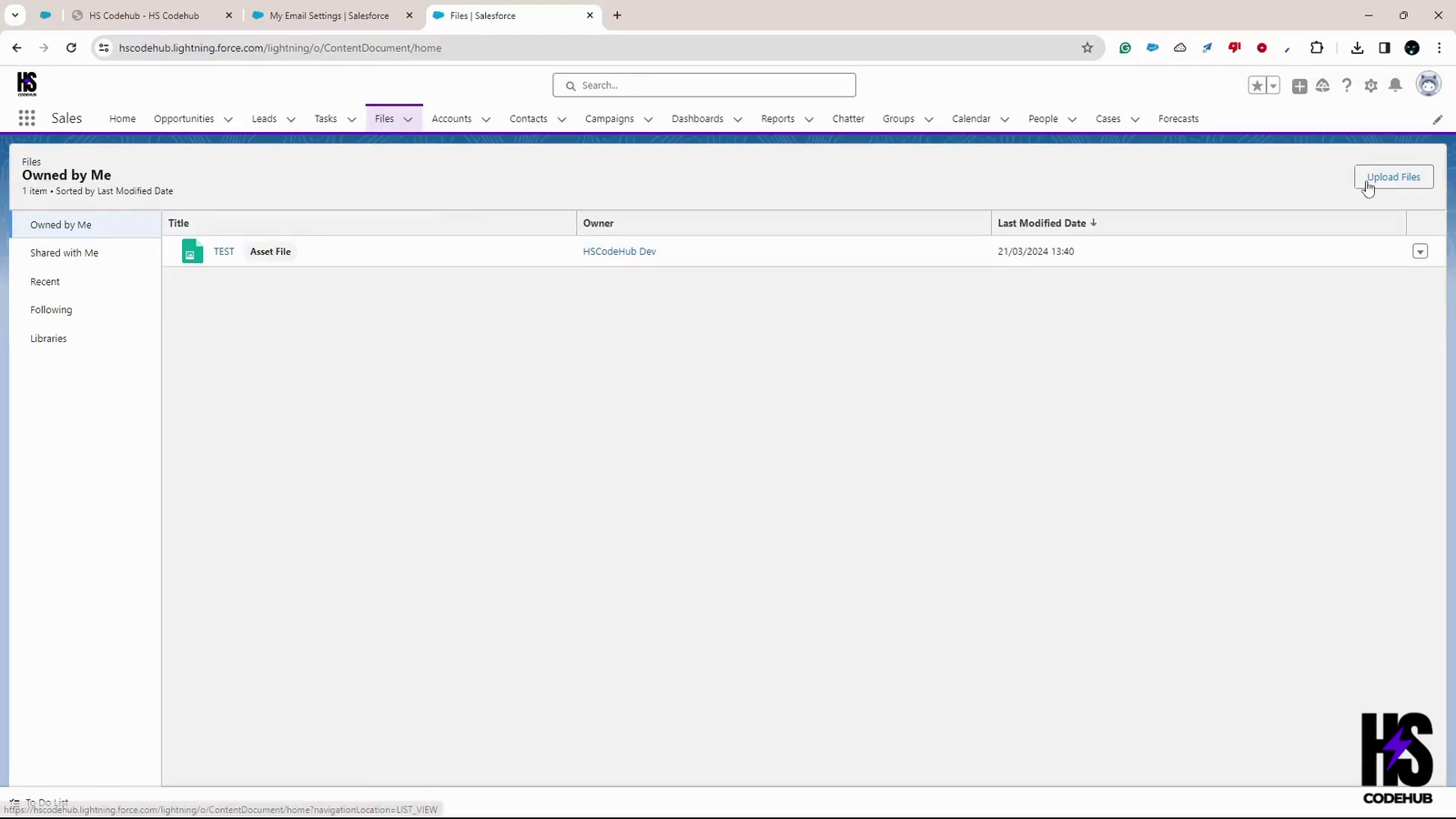
Go to App Launcher, Search for ‘Files,’ > Open Files, Click on ‘Upload Files,’ and upload your logo.
Now, click on the dropdown on the right side of the uploaded picture > Click on ‘Public Link’
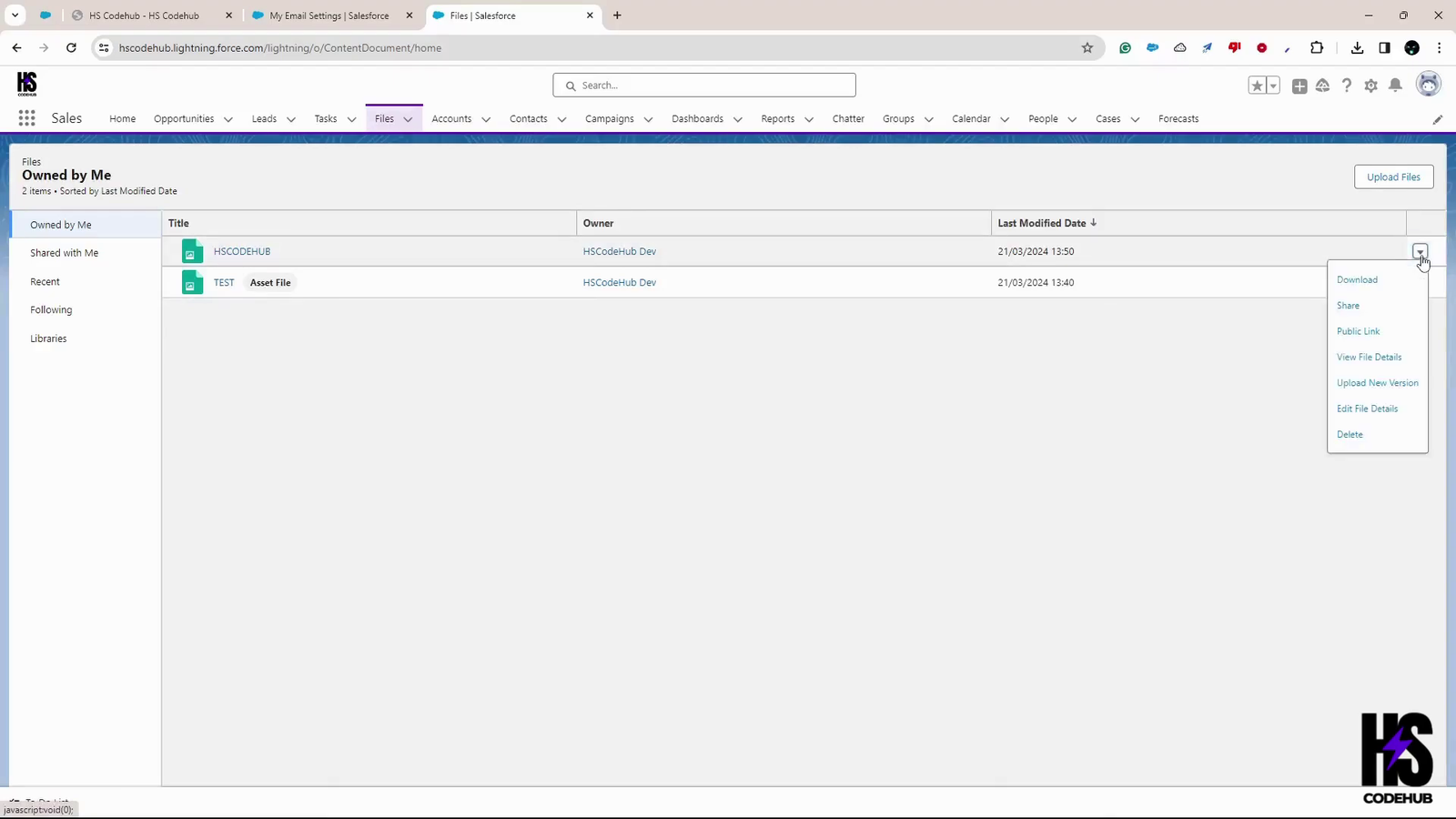
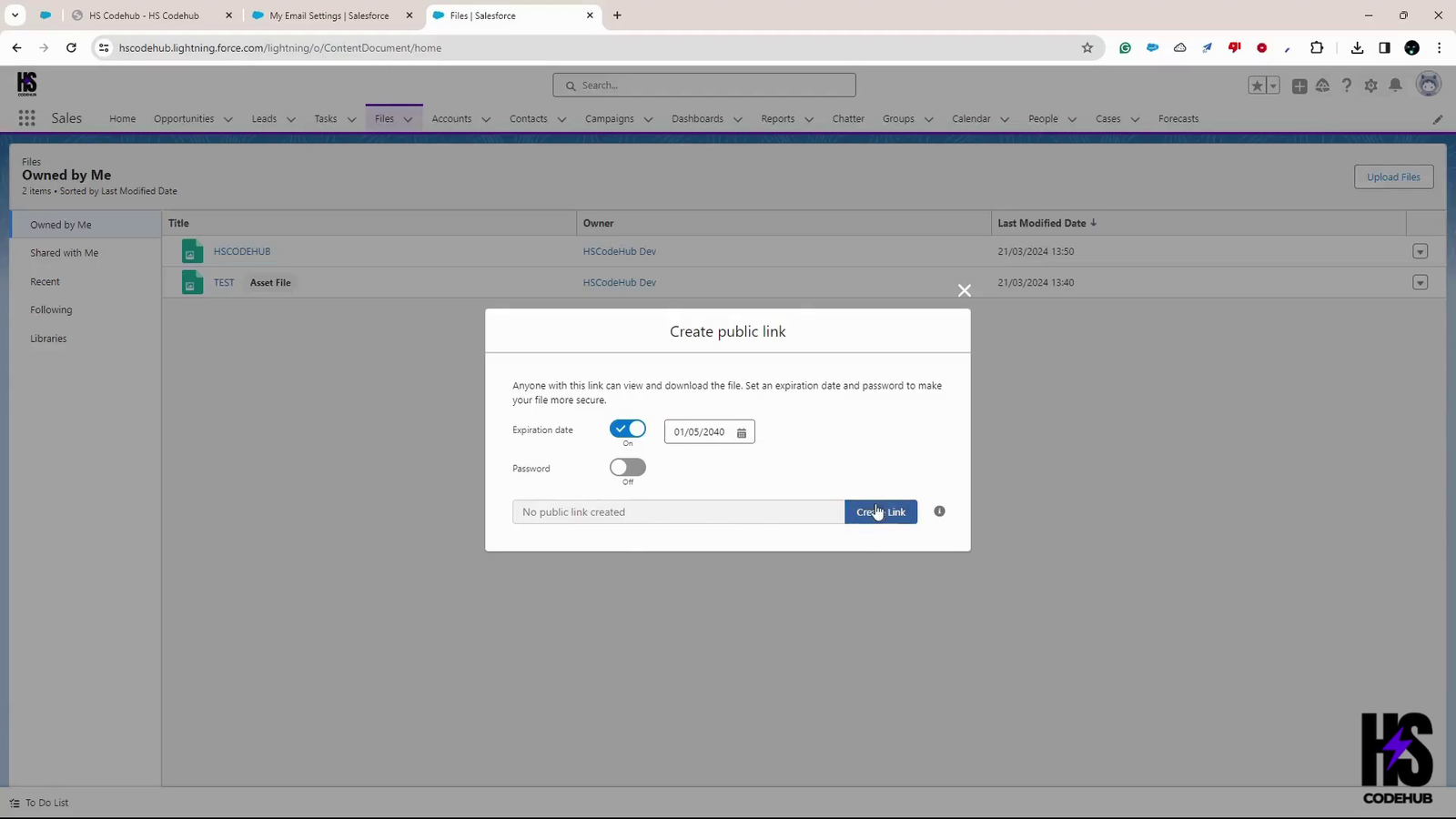
Click on the ‘Create Link,’ then set the expiration date, and copy the link.
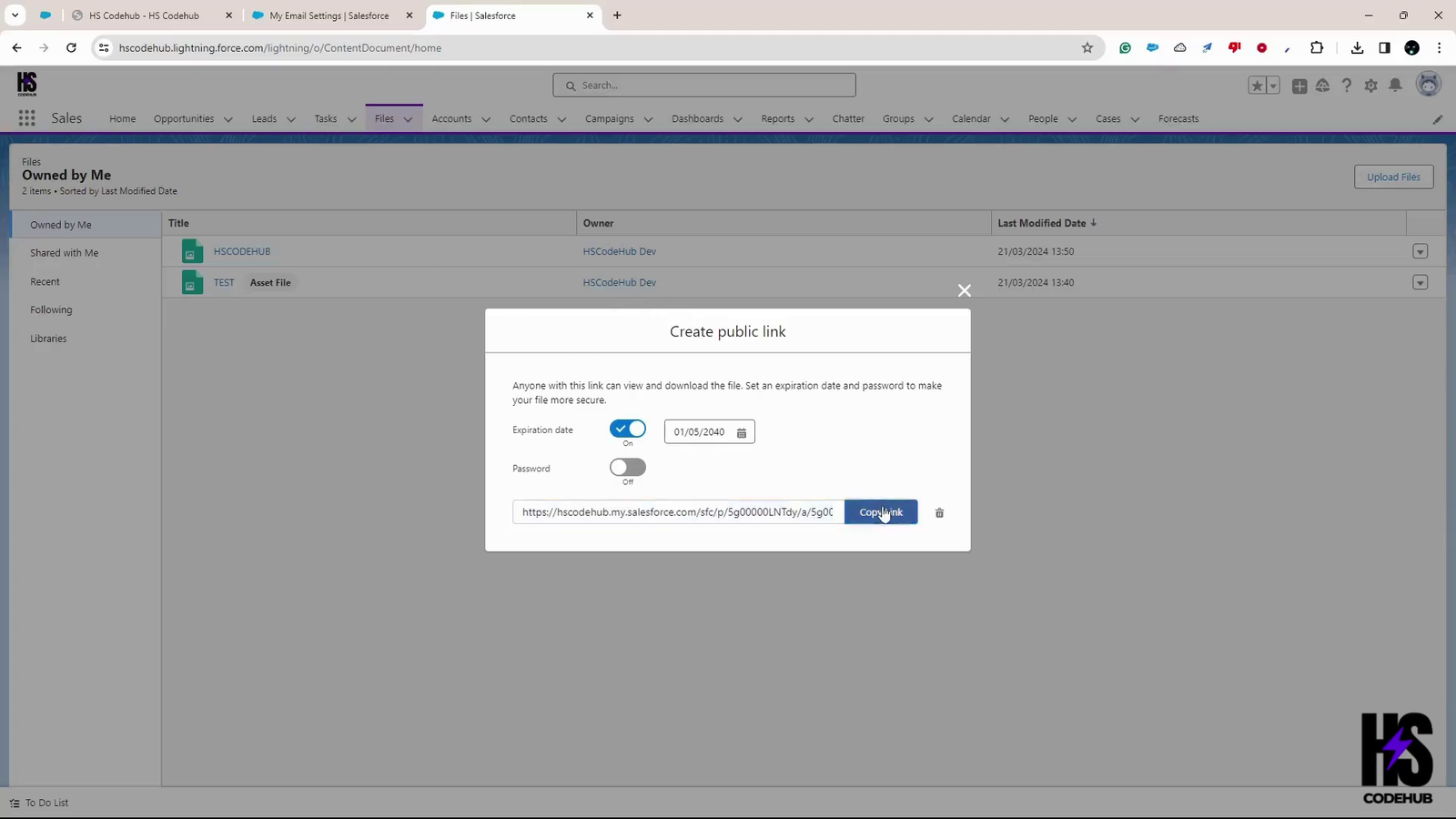
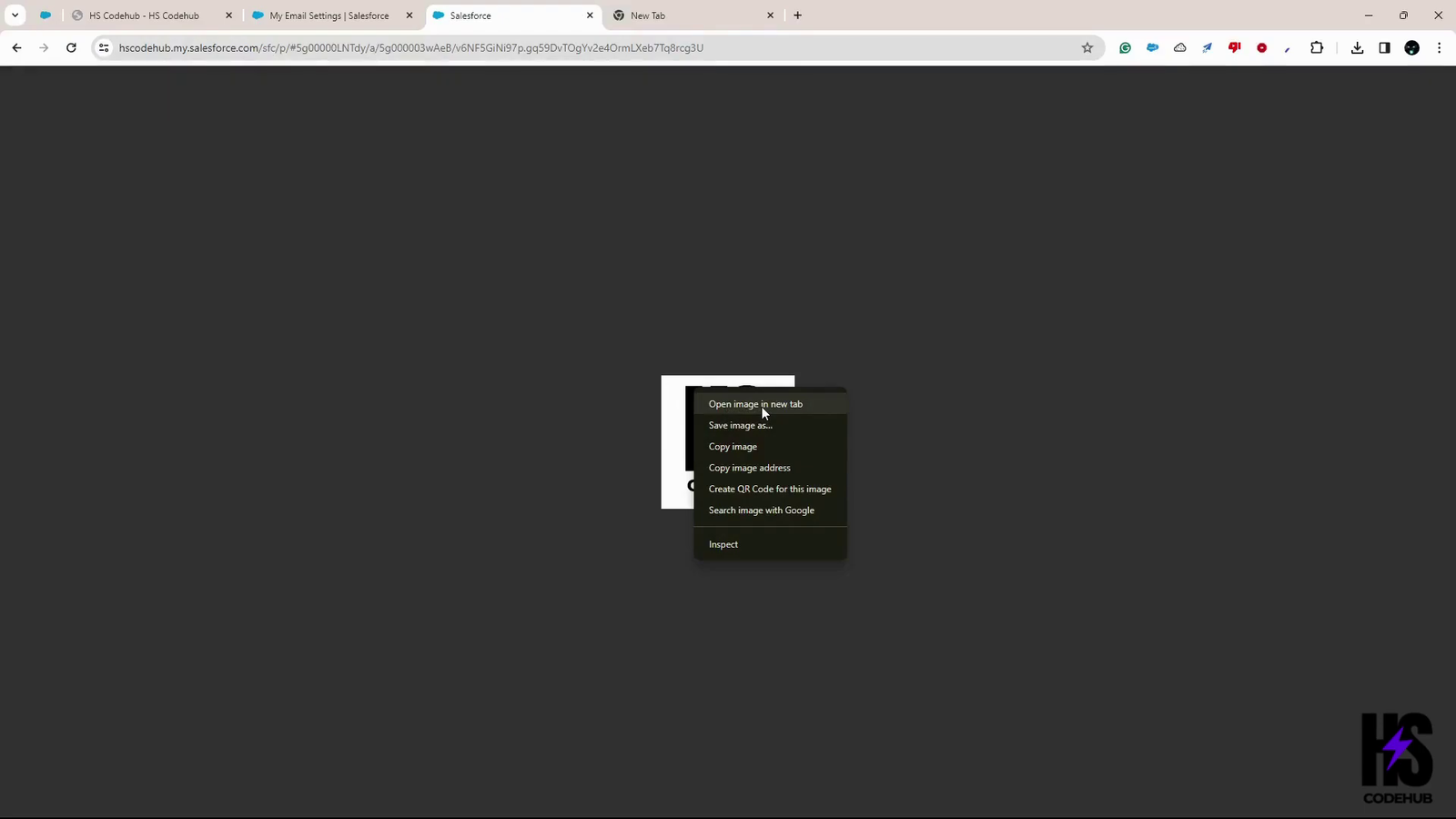
Now, open the copied link in a new tab. Then, click ‘Open image in new tab’. In the new tab, copy the final URL of the image.
Go back to my email setting again. Click on profile avatar > Settings >Search for ‘My Email Settings’. In the ‘Email Signature’ section, now add this at the bottom of the text signature:
<img src="paste URL of the image">
For example, like this:
<img src="www.hscodehub.com/image.png">
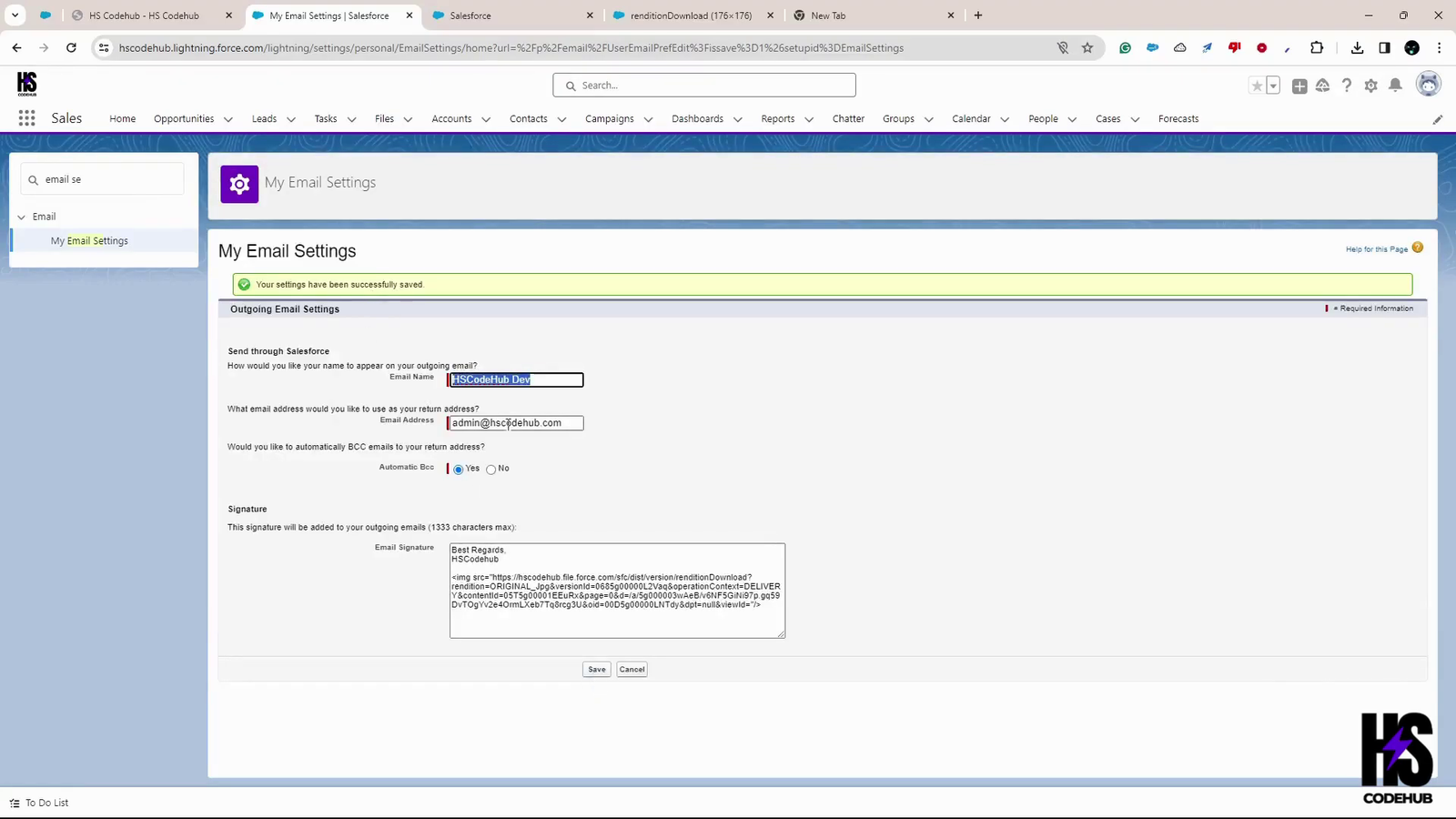
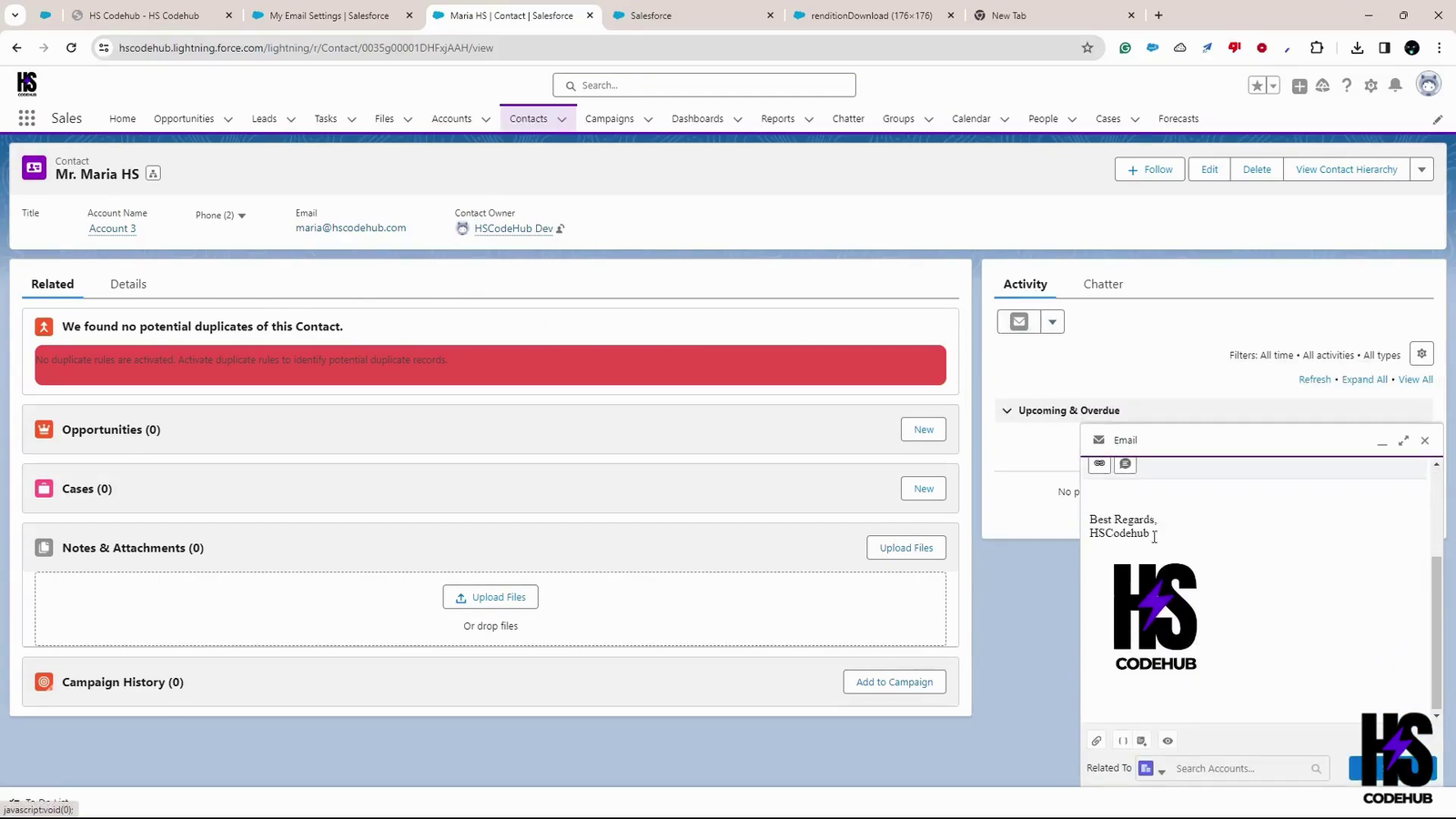
Save it. If you go back to any records and try to send an email, you will notice that the signature with the logo will be automatically populated.
This is the step that causes almost every “my signature worked and now shows a broken image” report.
When you create the public link in Files, Salesforce offers an expiration date. If you set one, the link stops resolving on that date and every signature using it silently breaks, on every email you have already sent as well as new ones. Recipients see a broken image placeholder.
Unless you have a specific reason to time-limit it, leave the expiration date blank. If your org policy forces an expiry, put a calendar reminder in before it lands.
Signature logos are one of the few places where a large image causes real problems rather than just slow loading:
<img src="..." width="200">Even with everything configured correctly, the logo will not render for everyone, and that is normal rather than a fault in your setup:
Because of this, never put information only in the logo. If your company name, role or contact details exist solely inside the image, a meaningful share of recipients see nothing. Keep the text signature complete on its own and treat the logo as decoration.
The Files public link approach is convenient because it needs nothing outside your org. If you already have a website or CDN, hosting the logo there is more robust:
The signature markup is identical, only the src changes.