Physical Address
304 North Cardinal St.
Dorchester Center, MA 02124
Physical Address
304 North Cardinal St.
Dorchester Center, MA 02124

Navigating Salesforce Excellence
Navigating Salesforce Excellence
Developer Console disappeared after the Winter '27 upgrade? The toggle that controls it now lives on the Web Console settings page. Plus the permission check to run when that does not fix it.
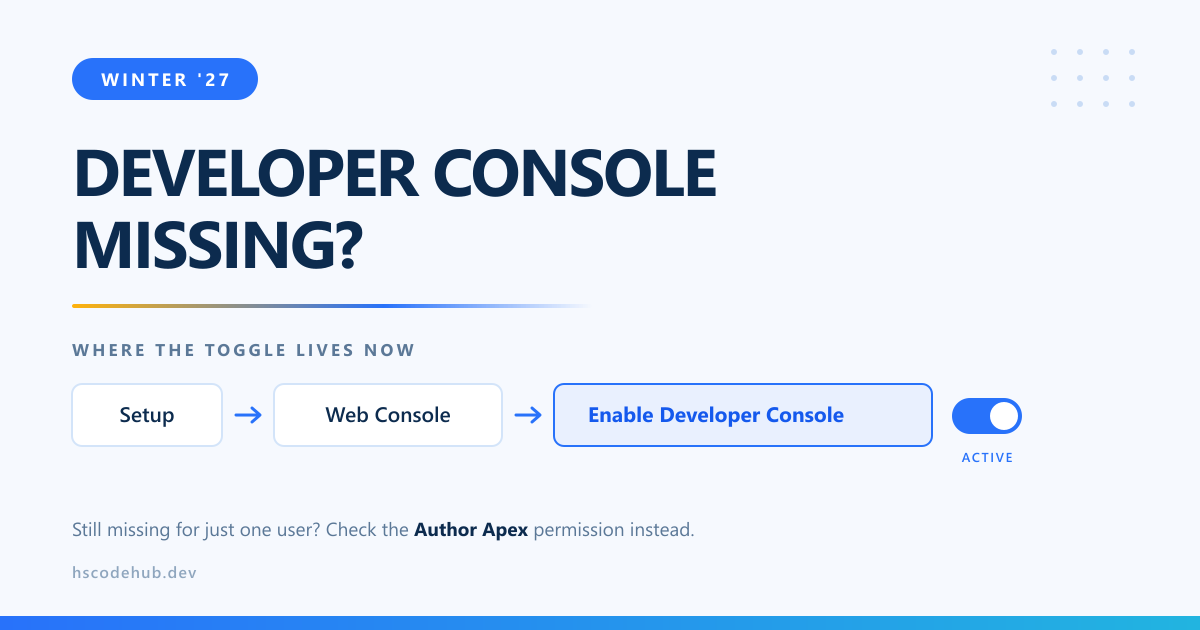
Upgraded to Winter ’27 and the Developer Console vanished from your gear menu? There is a new toggle controlling it, and it lives on the settings page for a different tool entirely.
The toggle is not the only thing gating Developer Console. Without the Author Apex permission a user cannot open it at all, and View All Data is needed alongside it in most orgs.
Quick way to tell which cause you have:
Web Console is the new browser based IDE, and the setting is designed to run Developer Console alongside it. Leave Developer Console on until your team has actually moved. Every runbook you own still says “open Developer Console”.
Also in this release: Apex heap limits increased in Winter ’27.